Is your terminal still running the now-abandoned Neofetch? It’s time to upgrade.
The End of an Era: Neofetch Is Dead
If you’re a Linux user, you’ve almost certainly seen a screenshot like this:
         _,met$$$$$gg.        user@machine
      ,g$$$$$$$$$$$$$$$P.     ---------------
    ,g$$P"        """Y$$.".   OS: Ubuntu 22.04 LTS x86_64
   ,$$P'               `$$$.  Kernel: 5.15.0-91-generic
  ',$$P       ,ggs.     `$$b: Uptime: 2 hours, 30 mins
  `d$$'     ,$P"'   .    $$$  CPU: Intel i7-1260P (16) @ 4.70GHz
   $$P      d$'     ,    $$$P Memory: 4096MiB / 15926MiB
   $$:      $$.   -    ,d$$'
   $$;      Y$b._   _,d$P'
   Y$$.    `.`"Y$$$$P"'
   `$$b      "-.__
    `Y$$
     `Y$$.
       `$$b.
         `Y$$b.
            `"Y$b._
                `""""
This is the iconic output of Neofetch — a tool that prints your system information alongside your distro’s ASCII logo right in the terminal. For years, it was a beloved ritual among Linux enthusiasts, a staple of every “show us your desktop” thread.
Then, in 2024, the developer announced it was officially abandoned and the repository was archived. A tool that had accompanied countless Linux users for years quietly walked into history.
The community needed a successor. Enter Fastfetch.
What Is Fastfetch?
Fastfetch is an open-source, command-line system information tool — a modern, actively maintained successor to Neofetch.
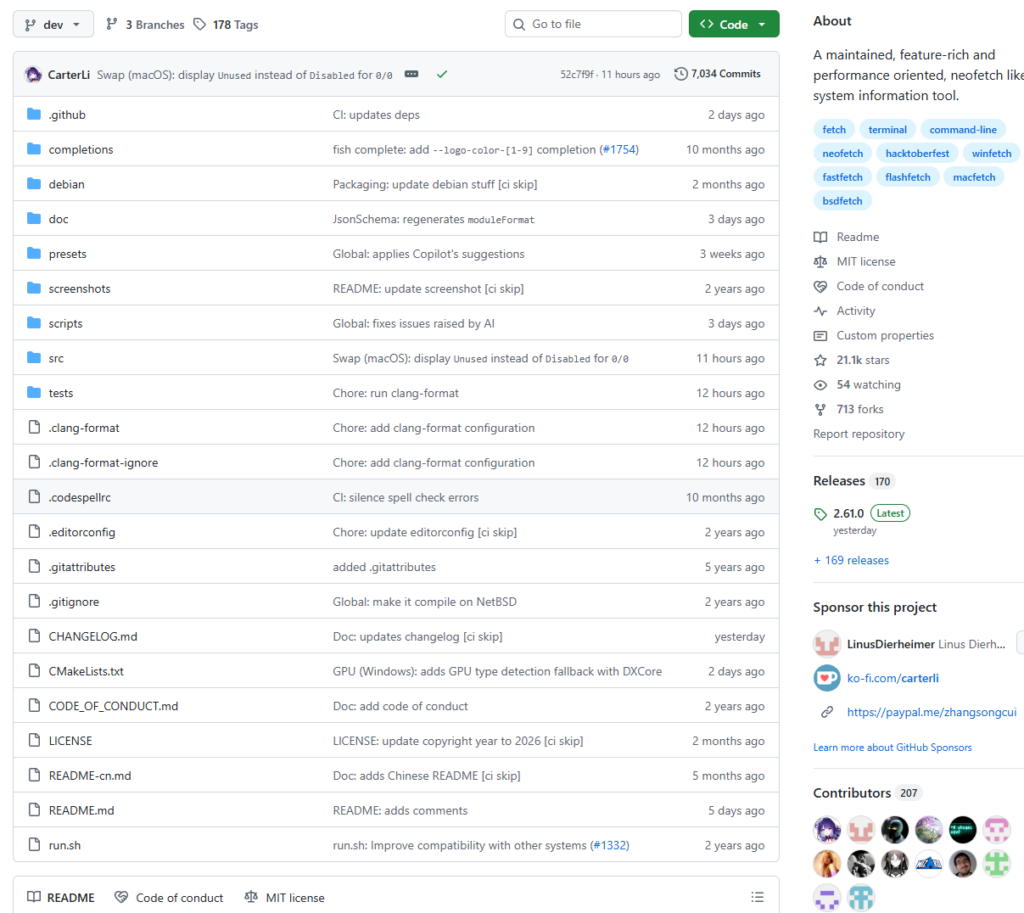
Project: https://github.com/fastfetch-cli/fastfetch
Its core strengths can be summed up in three words: fast, accurate, and beautiful.
Fast
Fastfetch is written in C, with performance and extensibility as primary design goals. Compared to Neofetch’s Bash implementation, the performance advantage of C is orders of magnitude — startup time is dramatically shorter. If you’ve ever added Neofetch to your .bashrc so it runs every time you open a terminal, you’ll immediately notice the difference.
The project spans roughly 200,000 lines of C11 code, built on a modular architecture with multi-threaded information gathering.
Accurate
Fastfetch reports information more accurately — memory usage is displayed correctly, and Wayland is properly supported. Both of these were longstanding pain points with Neofetch.
Beautiful
Fastfetch supports hundreds of built-in distro logos, image rendering (via iTerm2 and Sixel protocols), and a modern configuration system that gives you fine-grained control over every aspect of the output.
Truly Cross-Platform
Fastfetch runs on Linux, macOS, Windows 8.1+, Android, FreeBSD, OpenBSD, NetBSD, DragonFly BSD, Haiku, and SunOS (illumos/Solaris).
One tool, every platform — a consistent experience regardless of what OS you’re on.
What Information Can It Display?
Fastfetch’s module library is vast, far surpassing Neofetch. Here’s a breakdown of supported categories:
| Category | Example Modules |
|---|---|
| System Basics | OS, Kernel, Host, Uptime, Shell |
| Hardware | CPU, GPU, Memory, Disk |
| Network | LocalIP, DNS, PublicIP |
| Desktop Environment | DE, WM, Display (resolution/refresh rate), Cursor, Font, Icons |
| Miscellaneous | Bluetooth, Gamepad, Keyboard, Battery, Weather, DateTime |
Some highlights: the Display module shows resolution and refresh rate; the Disk module lists partitions and usage; the Gamepad module lists connected controllers; the GPU module reports GPU name and VRAM; and the Loadavg module prints system load averages.
Run fastfetch -c all to see every available module’s output at once and pick what you want to keep.
Installation
Fastfetch is available in most major package managers — installation is straightforward.
Linux
# Ubuntu / Debian
sudo apt install fastfetch

# Fedora / RHEL
sudo dnf install fastfetch

# Arch / Manjaro
sudo pacman -S fastfetch

# Gentoo
sudo emerge --ask app-misc/fastfetch
macOS
brew install fastfetch
Windows
# Using Scoop
scoop install fastfetch

# Using winget
winget install fastfetch
Note: Some distro repositories may carry an older version. For the best experience, ensure you’re running the latest release. Ubuntu users can add the PPA:
ppa:zhangsongcui3371/fastfetch
Basic Usage
Run it
Just type the command and hit Enter:
fastfetch
Preview all modules
fastfetch -c all
This outputs every module Fastfetch supports, so you can browse and pick the ones you want.
Switch the logo
List all built-in logos:
fastfetch --list-logos
Use a specific logo (e.g., show the Arch logo even on Ubuntu):
fastfetch --logo Arch
Use a preset configuration
Fastfetch ships with several built-in presets. To display only hardware info:
fastfetch -c hardware
Generate your own config file
fastfetch --gen-config
This creates a config file at ~/.config/fastfetch/config.jsonc that you can edit freely.
Deep Customization: The JSONC Config File
This is one of the key areas where Fastfetch truly surpasses Neofetch.
Fastfetch uses JSONC (JSON with Comments) for configuration — a well-supported, standard format that works with syntax highlighting, validation, and auto-formatting in virtually every modern code editor and IDE.
A typical config file looks like this:
{
  "$schema": "https://github.com/fastfetch-cli/fastfetch/raw/dev/doc/json_schema.json",
  "logo": {
    "type": "builtin",
    "source": "Arch"
  },
  "display": {
    "separator": " => ",
    "color": {
      "keys": "blue",
      "title": "cyan"
    }
  },
  "modules": [
    "Title",
    "Separator",
    "OS",
    "Host",
    "Kernel",
    "Uptime",
    "Packages",
    "Shell",
    "Display",
    "DE",
    "WM",
    "CPU",
    "GPU",
    "Memory",
    "Disk",
    "LocalIp",
    "Separator",
    "Colors"
  ]
}
You have precise control over:
- Which modules are shown and in what order
- Per-module display format (e.g., show memory as a percentage or absolute value)
- Color scheme (key color, title color)
- Logo source (built-in, file, or image)
- Separator style
You can even include the same module multiple times — something the old tools simply couldn’t do.
A Word on Security
Fastfetch supports a Command module that can execute arbitrary shell commands as part of its output. If you copy a config file from an untrusted source, it could contain malicious commands designed to harm your system or leak private data.
This isn’t just a theoretical concern — there have been real cases of malicious scripts embedded in shared Fastfetch configs in online communities. Always review any config file before using it, especially if you grabbed it from a forum or someone’s dotfiles repo.
Summary: Fastfetch vs. Neofetch
| Feature | Neofetch | Fastfetch |
|---|---|---|
| Maintenance status | Abandoned ❌ | Actively maintained ✅ |
| Implementation language | Bash | C |
| Startup speed | Slow | Extremely fast |
| Config format | Plain text | JSONC (modern) |
| Information accuracy | Adequate | Higher |
| Wayland support | Limited | Full |
| Platform support | Primarily Linux | Linux / macOS / Windows / Android / BSD |
| Module variety | Basic | 50+ modules |
If you’re still running Neofetch, now is a great time to switch. And if you’ve never tried this style of tool before, give it a shot — there’s something genuinely satisfying about opening a terminal and seeing your system specs rendered with a clean ASCII logo.
One command to get started:
# Linux (apt)
sudo apt install fastfetch && fastfetch
GitHub: https://github.com/fastfetch-cli/fastfetch
Stars: 20k+ and growing
Found this useful? Share it with a fellow Linux enthusiast.